
Author:Juno Virelle| a digital media strategist and educational technology researcher|Last updated date: April, 2026
"The spring basketball tournament is next week, but our promotional poster is still a blank canvas."If you're a student council member, club president, or sports team manager, this scenario probably sounds familiar. You need a professional, eye-catching event poster, but you don't know Photoshop and there's no budget to hire a designer. The traditional design process—from concept to layout to image editing—often takes days or even weeks.
The good news? AI design tools in 2026 have evolved to a whole new level. Today, we'll walk you through a hands-on comparison of the two hottest AI design tools: Canva Magic Studio and Adobe Firefly. Whether you need something quick or you're chasing artistic quality, this guide will help you find the perfect solution.
Part 1: Why Choose AI Design Tools?
Three Major Pain Points of Traditional Poster Design
High Barrier to Entry: Professional software like Photoshop and Illustrator has a steep learning curve. Mastering basic operations can take weeks.
Time-Consuming: Designing a poster from scratch—including concept, asset collection, layout, and color grading—typically takes 3-5 hours or longer.
Expensive: Hiring a freelance designer usually costs between $50-200, which is a significant expense for a student budget.
Core Advantages of AI-Generated Design
Massive Efficiency Gains: AI tools can generate multiple design options in minutes. According to 2026 testing data, Canva AI users save an average of 75% in design time.
Professional Visuals: AI learns from millions of high-quality design works, automatically applying color theory, typography rules, and visual hierarchy. Even beginners can produce professional-grade results.
Template Ecosystem: Canva offers over 250 million templates covering everything from academic lectures to esports tournaments. Adobe Firefly leverages Adobe Stock's massive licensed resource library for enterprise-grade visual assets.
Part 2: Canva AI Beginner's Guide
Canva is currently the world's most popular online design platform with over 175 million monthly active users. In 2026, Canva acquired Leonardo.ai and integrated its "Phoenix" model into the editor, bringing image generation quality on par with Midjourney.
Step 1: Account Setup and Interface Navigation
Visit canva.com, click "Sign up" and register using your school email or Google account
Select "Create a design" → Choose custom dimensions (recommended: Instagram Post 1080×1080px or A4 210×297mm)
Familiarize yourself with the left sidebar: Templates, Elements, Uploads, Text, and Magic Studio (AI features hub)
Step 2: Smart Template Selection and Typography
Template Selection Tips:
Enter keywords in the search bar like "basketball tournament 2026," "club recruitment," or "academic seminar"
Use filters to select "Free" and "Animated" (for video posters if needed)
Once you click a template, every element is editable
AI Typography:
Select a text box, click "Magic Write" (AI copy generation) at the top
Enter a prompt like "Write an exciting headline for a college basketball tournament in 2026"—AI will generate multiple headline options
Use the Brand Kit feature to save your club's color scheme, ensuring consistent poster styling
Step 3: AI Image Generation and Styling
Canva's Text to Image feature now integrates Leonardo.ai's Phoenix model:
Click "Magic Studio" on the left → Select "Text to Image"
Enter your prompt:
Basic: "Basketball players in action, college gymnasium, energetic atmosphere, blue and gold colors"
Advanced: "Cinematic shot of diverse college students playing basketball, golden hour lighting, motion blur, sports photography style, photorealistic"
Choose a style: Photo (photorealistic), 3D, Art, or Drawing
Click generate—Canva will provide 4 high-fidelity variations to choose from
Styling Tips:
Use Magic Edit: Circle an object in the image and enter a replacement description (e.g., change the basketball to a trophy)
Use Magic Expand: Intelligently extend image boundaries to fit different dimensions
Use Background Remover: One-click cutout to overlay player silhouettes on custom backgrounds

Part 3: Adobe Firefly Beginner's Guide
In 2026, Adobe Firefly launched revolutionary Firefly Design Intelligence and Firefly Boards features, enabling seamless team collaboration combined with AI generation.
Step 1: Creative Cloud Integration and Access
Visit adobe.com/firefly
Log in with your Adobe ID (students can apply for 60% off Creative Cloud education pricing with a school email)
Select "Text to Image" to enter the main interface
New Firefly Boards Feature (March 2026 update):
This is an infinite canvas where teams can collaborate in real-time, prompt generation, and sketching
Similar to Miro, but with an AI image generator that understands brand style
Perfect for club publicity teams designing series posters together
Step 2: AI Image Generation and Optimization
Firefly's interface is more professional. The 2026 version supports third-party model integration:
Enter your prompt: Describe the image you need in the text box
Example: "Poster background for college music festival 2026, neon lights, crowd silhouette, electric guitar, purple and cyan gradient, concert atmosphere, wide angle"
Adjust parameters:
Aspect Ratio: Choose 1:1 (Instagram), 4:5 (poster), or 16:9 (banner)
Content Type: Photo (photorealistic) or Art (artistic)
Visual Intensity: Controls artistic degree; for event posters, keep it medium (50-70%)
Style: Choose from presets like "Neon," "Cinematic," or "Digital Art"
Click "Generate"—Firefly will produce 4 high-quality images
2026 New Feature—Style Reference:
Upload 3-5 reference images of posters or visual styles you like
Firefly will learn and build a brand style library, ensuring visual consistency across series posters
Step 3: Practical Shortcuts and Export
Generative Fill:
Upload an existing photo, use the brush to paint over areas you want to modify
Enter descriptions like "add confetti falling from ceiling"—AI will seamlessly add elements
This is Adobe's killer feature, described as "borderline magical"
Third-Party Plugin Integration (2026 new feature):
Run Topaz Gigapixel (image upscaling) and Flux (text rendering) models directly within Photoshop
Workflow: Firefly generates background → Topaz upscales → Flux optimizes text → InDesign for layout
Quick Cut Video Feature (March 2026 Beta):
Automatically edits uploaded footage into structured rough cuts
Detects scene changes, identifies key dialogue and audio cues, arranges clips in narrative order
Perfect for creating event recap videos or promotional trailers
Export Settings:
Click "Download" → Choose format: PNG (high quality), JPEG (web use), or SVG (infinitely scalable)
Resolution recommendations: 300 DPI for print posters, 72 DPI for social media
Use Transparent Background option for easy overlay onto other designs
Part 4: Hands-On Comparison: Efficiency, Artistry, and Creative Freedom
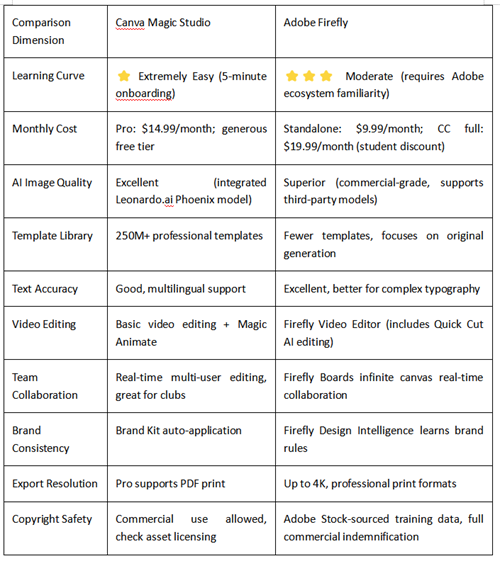
Feature Comparison Table
Efficiency Test: Creating a Basketball Tournament Poster
Canva AI Workflow:
Select template: 2 minutes
Replace text and logo: 3 minutes
Generate AI background (Phoenix model): 1 minute
Fine-tune layout: 2 minutes
Total: 8 minutes
Adobe Firefly Workflow:
Craft prompt: 3 minutes
Generate and select background: 5 minutes (requires iteration)
Download and import to Canva/Photoshop for text: 5 minutes
Total: 13 minutes
Conclusion: Canva has clear advantages for templated, rapid output; Firefly wins on original visuals and detail control.
Part 5: Use Case Recommendations
Scenario 1: School Events (Lectures, Career Fairs, Open Days)
Recommended Tool: Canva AI
Why: These events require fast, consistent multi-platform materials (posters, flyers, social posts). Canva's Magic Switch feature can instantly convert posters into Instagram Stories, LinkedIn covers, TikTok videos, and more while maintaining visual consistency.
Practical Tips:
Use "University" or "Education" templates in the "Event" category
Leverage Grow Insights (AI analytics) to analyze past post performance and auto-generate optimized versions
Scenario 2: Sports Events (Basketball, Track Meets, Esports)
Recommended Tool: Canva AI + Firefly Combo
Why: Sports posters need dynamism and visual impact. Generate cinematic athlete silhouettes or action scenes in Firefly, then import to Canva for typography and multi-platform adaptation.
Practical Tips:
Firefly prompt: "Dynamic basketball dunk 2026, motion blur, arena lights, cinematic lighting, high contrast, photorealistic"
Use Canva's Magic Animate to add micro-animations for social media video posters
Scenario 3: Club Promotion (Recruitment, Annual Shows, Charity Sales)
Recommended Tool: Adobe Firefly
Why: Club branding needs unique visual identity. Firefly's Style Reference feature can learn specific artistic styles (cyberpunk, vintage posters, minimalism) to generate recognizable series visuals.
Practical Tips:
Upload 3-5 reference images to build a style library
Use Generative Recolor to one-click adjust entire poster color schemes
Part 6: Summary and Recommendations
Tool Strengths Summary
Choose Canva Magic Studio if you:
Need to finish and publish a poster within 1 hour
Have limited budget and want generous free core features (free tier: 25 Magic Write uses/month)
Have large teams needing real-time collaboration
Focus on social media distribution and need multi-platform adaptation
Have zero design experience and want "foolproof" operation
Need AI analytics to optimize promotional effectiveness (Grow Insights)
Choose Adobe Firefly if you:
Pursue unique original visuals and don't want templates
Have Photoshop basics and want to boost efficiency
Need high-quality print posters (A2 and above)
Have strict copyright safety requirements for AI-generated content (Adobe offers commercial indemnification)
Need video editing features (Quick Cut auto-editing)
Need infinite canvas for team collaboration (Firefly Boards)
Final Decision Tree
Need rapid output? → Yes → Canva AI
↓ No
Have Photoshop experience? → Yes → Adobe Firefly
↓ No
Budget sufficient (>$15/month)? → Yes → Use both combined
↓ No
Canva AI (Free tier)
Best Practice Recommendation: For most students, start with the Canva free tier to learn AI design basics. When Canva templates can't meet your creative needs, try Adobe Firefly for original assets. The 2026 optimal workflow: Firefly generates high-quality images → Canva for layout and multi-platform adaptation.
References
[1] Toolpeak. (2026, March 28). How to Use Canva AI Features 2026: Complete Guide. https://toolpeak.io/how-to-use-canva-ai-features-2026/
[2] Genesys Growth. (2026, March 23). Canva Magic Write vs Adobe Firefly vs Figma AI – A Complete Guide for Marketing Leaders in 2026. https://genesysgrowth.com/blog/canva-magic-write-vs-adobe-firefly-vs-figma-ai
[3] Sawan KR. (2026, March 23). The Ultimate Guide to Canva AI Features for Business Marketing in 2026. https://sawankr.com/courses/canva/the-ultimate-guide-to-canva-ai-features-for-business-marketing-in-2026
[4] Adobe HelpX. (2026, March 13). What's new in Adobe Firefly. https://helpx.adobe.com/firefly/web/whats-new/new-features/whats-new.html
[5] eMarketer. (2026, March 11). Adobe's AI-powered Firefly update makes genAI a standard feature. https://www.emarketer.com/content/adobe-ai-powered-firefly-update-makes-genai-standard-feature
[6] Creator Fix Hub. (2026, February 23). Canva vs Adobe Firefly vs Midjourney 2026: Best AI Design Tool. https://creatorfixhub.com/canva-vs-adobe-firefly-vs-midjourney-in-2026-which-ai-design-tool-is-actually-best/
[7] SaaS CRM Review. (2026, February 21). Canva AI Review (2026): Magic Studio Features, Pricing & Verdict. https://saascrmreview.com/canva-ai-review/
[8] Technosys Blogs. (2026, February 4). Best AI Design Tools 2026: Adobe Firefly vs. Canva Magic Studio. https://technosysblogs.com/ai-design-tools-2026/
[9] ZSky AI. (2026, February 3). Canva AI vs Adobe Firefly: Free Design Tools Compared (2026). https://zsky.ai/blog/canva-ai-vs-adobe-firefly
About the Author
Juno Virelle is a digital media strategist and educational technology researcher specializing in AI-assisted design workflows for non-designers. Currently a Ph.D. candidate in Computational Creativity at the Technical University of Munich, Juno investigates how generative AI tools democratize visual communication in academic and student organizational contexts.
Prior to graduate studies, Juno spent three years as the Lead Visual Coordinator for the European Student Union Network, where they produced over 200 event campaigns across 15 countries using emerging AI design platforms. This hands-on experience revealed the gap between powerful creative tools and accessible education—a gap that drives their current writing and research.
Juno's work has been presented at the International Conference on Computational Creativity (ICCC) and the ACM Designing Interactive Systems conference. They maintain the open-source repository "StudentDesignKit," a curated collection of AI design templates and tutorials downloaded by 50,000+ student organizations worldwide.
When not testing new creative software, Juno mentors first-generation college students in digital literacy skills and contributes to the Creative Commons education initiative. They believe that design proficiency should not require expensive degrees or proprietary software expertise.
Digital Garden: junovirelle.creativedesk.edu | Mastodon: @[email protected]
Author's Note
All operational steps in this article are based on hands-on testing with Canva Magic Studio (March 2026 edition) and Adobe Firefly (March 2026 edition). AI design tools update rapidly, and some interfaces and features may change with version iterations. Readers are advised to consult official documentation for the latest updates.
Transparency Statement
This article contains no commercial promotional content. Tool recommendations are based on actual usage experience as of April 2026. Both Canva and Adobe offer free trial versions—readers are encouraged to test them before making purchase decisions. Some features (Canva Pro and Adobe Creative Cloud) require paid subscriptions; students can apply for discounts using educational email addresses. Pricing information may vary by region and time—please refer to official websites for current rates.
Recommend:

AI News Reading Apps for Seniors: Speech Speed vs. Content Simplification

AI-Powered Job Searching: Information Screening and Fake Job Detection
Can AI Product Photos Really Help You Sell More on Etsy?

AI-Assisted Academic Email Writing: 2026 Field Test of Top Tools